
All Valice hosting plans include AccelerateWP which provides page caching and WordPress website optimization features.
Enable AccelerateWP
From your Valice Account (my.valice.com), connect to your Plesk Control Panel
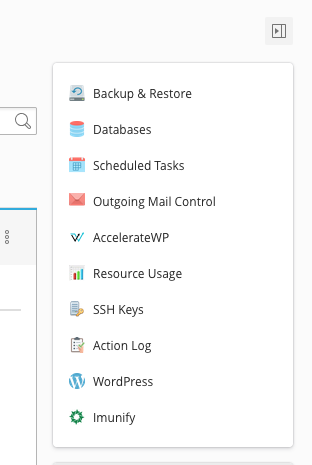
- Expand the menu of options on the right side of your dashboard (by clicking the side carat icon) and click “AccelerateWP”
- When you see your Website Domain load, hover over “No Advice” (which means it’s not yet active) and click on the gear icon to enable the feature.
- Toggle the button to “on” next to “AccelerateWP”
After performing the steps above, AccelerateWP will be installed on your website and is ready for further customization if you’d like to refine or customize the default settings. By default the plugin will enable page caching and pre-loading.
AccelerateWP Plugin Settings
In your WordPress dashboard, navigate to “Settings” > “AccelerateWP” to access the plugin settings.
Dashboard
From here you can clear and preload (if enabled) the site cache. You can also do this from the admin bar of the website when you are logged in as an administrator. This is recommended after you have made style changes or file-level changes to your website and those aren’t being propagated out to unauthenticated visitors.
Cache
Mobile Cache
In this section, you can choose to disable caching or create a separate cache for mobile devices. By default, the mobile caching is enabled and we only recommended enabling it as a separate cache, if your mobile site is generated by a plugin or functions separately from your main WordPress theme.
User Cache
This setting will create cache files for each user which may be beneficial if you serve specific content to specific users. However keep in mind that if you have several users, this can create a very large cache file and if they don’t regularly log in, it may cause more performance disruption than benefit.
Cache Lifespan
This setting defines how long to keep your cache before it’s automatically cleared/deleted.
File Optimization
In this section, you can configure combining and minifying javascript and css files. These can further improve page load times and site speed score results. Some plugins, however, may not be compatible with these settings so be sure to test your website (in an unauthenticated browser and in multiple browsers) after you enable any of these features to ensure that things are working properly.
Media
Additional page load times can be reduced and scores improved by optimizing your media. LazyLoad will tell the browser to prioritize loading the page content ahead of media (images or iframes). You may see a delay on the page in the media appearing after enabling this.
Adding missing image dimensions is also recommended and should be tested after enabling to make sure you don’t need to add additional css style settings (e.g. setting width or height to “auto”) if you find that images on the site have become distorted.
Preload
Preloading is enabled by default and is tied to your cache lifespan (see above). Pages will be preloaded every time the cache is cleared. Preload emulates a visit to your website pages in order to generate a cache of the page. With preloading disabled, each page’s cache is created when an unauthenticated visitor visits the page.
Advanced Rules
There may be pages on your website that do not work properly with caching. In these cases, you can use the “Never Cache URL(s)” rules to exclude these pages (URLs) from being cached by the plugin.